The short answer first: Shopware 6 does not force anyone to assign a manufacturer to a product. The field is optional, and a product without a manufacturer looks exactly like any other on the product page. The gap only shows where the brand is needed, and usually too late.
We show four ways to find the affected products, with their limits. Transparency upfront: option 4 is our own plugin, and it is free. The other three work without us.
Where a missing manufacturer actually costs you
Nothing visible is missing in the shop itself. But anyone filtering a category listing by brand will not see products without a manufacturer, even if they belong to that brand.
The product feed is more expensive. The Google Shopping template that ships with Shopware fills the brand field straight from the product's manufacturer. Without a manufacturer, the field stays empty in the feed. Google, however, requires the brand for every product with a clearly associated brand or manufacturer, and explicitly for merchant-made goods too.
- Brand filter in the listing: products without a manufacturer drop out of the filtered view
- Google Shopping feed: empty brand field, although Google requires it for branded goods
- Brand landing pages that many shops build with shopping experiences or extensions: the product does not show up there
Option 1: The product list in the admin
The product list in the admin has a manufacturer filter. It answers which products belong to a specific brand. There is no filter for products that have no manufacturer at all, and no total count of those cases.
For a small catalog you can go through the list by hand. From a few hundred products on it gets tedious, and a row you miss goes unnoticed.
- Good for: small catalogs, a one-off look
- Not good for: large catalogs and regular checks
Option 2: Export and spreadsheet
The built-in export profile for products (Settings, Import/Export) contains the manufacturer and the ID of the parent product. After exporting, filter the spreadsheet for rows where the manufacturer is empty.
Important: the export includes variants. Variants have a filled parent column (parentId) and inherit their manufacturer. Keep only the rows where that column is empty, or you will count variants as gaps.
- Good for: occasional checks without technical knowledge
- Effort: export and filter again for every check
- Cost: none (built-in)
Option 3: A read-only SQL query
With database access you get the number from a single query on the product table. It only reads and changes nothing. Three conditions belong in it:
- product_manufacturer_id is empty (NULL): no manufacturer assigned
- parent_id is empty: parent products only, no variants
- version_id is the live version (0fa91ce3e96a4bc2be4bd9ce752c3425): Shopware keeps products in several versions, only the visible one counts
Option 4: A report that answers exactly this one question
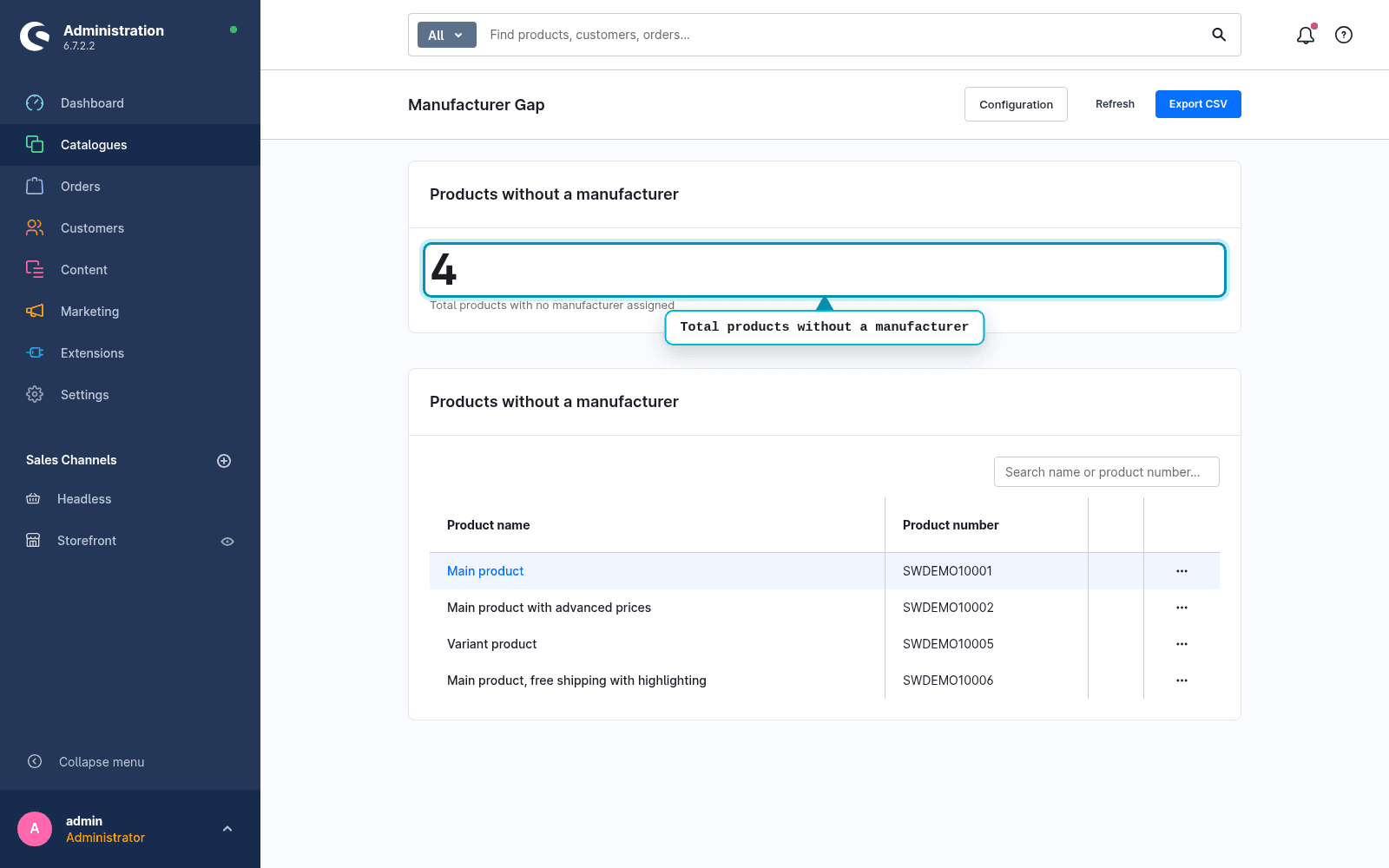
Our Manufacturer Gap Report (yes, ours, hence this note) shows the total number of parent products without a manufacturer at the top, and every affected product with name and product number below. One click takes you straight into the product to fill in the manufacturer, and all matches can be exported as CSV.
It only reads, stores no state and needs no setup. It deliberately does not check variants individually, because they inherit the manufacturer. It is free.
And then: assign the manufacturers
Finding them is half the job. The native bulk edit in the product list is the right tool for assigning: select products, set the manufacturer, up to 1,000 products per run. If you make the goods yourself, create your shop or your brand as the manufacturer. Google requires the brand in that case too.
Which option for which case?
- Small catalog, one-off look: go through the product list in the admin
- Occasional check without technical skills: export and spreadsheet
- Database access: a read-only SQL query
- Regular checks with a count, a list and a direct link: the free report
See the gap in one minute
The Manufacturer Gap Report shows you the count, the list and the direct link to fill in the gap. Free in the Shopware Store. And if you want to know how healthy your shop is overall: the free Shop-Check tests SEO, broken links and AI visibility in 30 seconds.
FAQ
Frequently asked questions
Does every product in Shopware need a manufacturer?
No. The field is optional, and Shopware saves products without one. It is needed where the brand matters: in the listing's brand filter and in product feeds such as Google Shopping.
Does Google Shopping require a manufacturer?
Google requires the brand for every product with a clearly associated brand or manufacturer, and for merchant-made goods. It is optional only for products without a clear brand, such as books, films or music. The Google template that ships with Shopware fills the brand from the product's manufacturer.
Do I need to check variants individually?
No. Variants inherit the manufacturer from their parent product. Checking parent products and products without variants is enough.
How do I assign a manufacturer to many products at once?
With the native bulk edit in the product list, up to 1,000 products per run. For larger volumes, the CSV import through the product profile, which includes the manufacturer, is the better fit.