The short answer first: Shopware 6 has no built-in find-and-replace for product texts. The native bulk edit can overwrite, clear or add whole fields, but it cannot swap text inside a field. If you need to change a brand name, an outdated claim or a typo across hundreds of descriptions, you need one of the four routes in this post.
We cover all four honestly, including their limits and risks. Full transparency: route 4 includes our own plugin. The other three work without us.
Route 1: native bulk edit, good for whole fields
In the admin product overview you can select multiple products and edit them together. The official documentation lists four modes: Overwrite, Clear, Add and Remove. Overwrite replaces the previous field value entirely with the new one.
That is useful for assigning the same manufacturer, category or tax rate to hundreds of products. A limit applies: at most 1,000 products per operation. The same cap applies to bulk-editing variants.
- Good for: setting whole fields (manufacturer, categories, prices, active state, properties)
- Not for: replacing text inside descriptions, titles or meta texts
- Limit: 1,000 products or variants per operation
Route 2: CSV export, edit, re-import
The built-in Import/Export (Settings → Import/Export) is the classic no-plugin route: export products as CSV, run find-and-replace in an editor or spreadsheet, re-import the file.
Matching matters: the import matches records via the id column (UUID). If the id is empty, Shopware creates a new record, the most common cause of sudden duplicates after an import. Never modify or delete the exported IDs.
Shopware offers a dry run that fully simulates the import before executing it. Always use it. And note a documented ground rule: the import can generally only add or overwrite information, not remove it. An existing sales channel assignment, for example, cannot be removed via CSV import.
- Good for: one-off large text changes if you work carefully and have a backup
- Risks: duplicates from missing IDs, Excel mangling encodings and leading zeros, broken HTML in descriptions, no in-shop preview of changes
- Cost: none (built in)
Route 3: SQL directly on the database
Technically you can replace text with UPDATE statements straight in the database. Shopware's own SQL tips are explicit: execution is at your own risk, the content is not officially supported, and a backup beforehand is expressly recommended.
Practical pitfalls add up: product data lives partly in versioned and translation tables, descriptions contain HTML, and caches and indexers must be rebuilt after direct changes. Without deep knowledge of the Shopware data model, this is the fastest way to break a shop.
Route 4: plugins, and what to check
The Shopware Store lists several bulk-edit plugins. Check exactly which text operations they support: the popular “Mehrfachbearbeitung für Shopware 6” (nimbi), for instance, extends bulk editing with filters and many fields, but its text operations are set, append and prepend according to the store listing. Find-and-replace inside existing text is not offered there either.
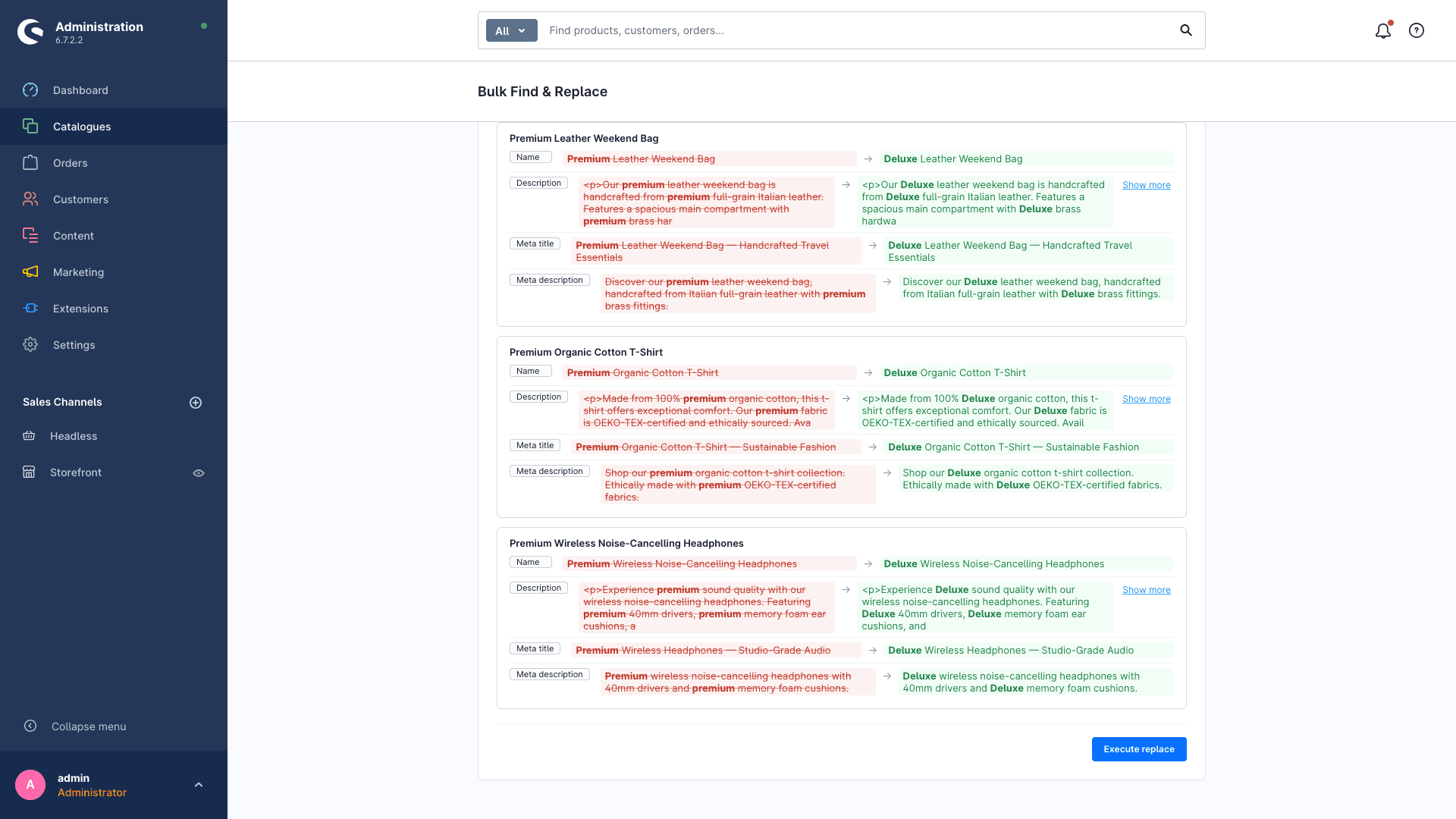
That exact gap is what our plugin Bulk Find & Replace fills (yes, ours, hence this disclosure): it searches product names, descriptions and meta texts for a term and replaces it, with a red/green preview of every single change before anything is written, and the ability to undo changes. Built for recurring text maintenance where the CSV route is too error-prone.
Which route for which case?
- Set whole fields once (manufacturer, category, price): native bulk edit (free, built in, up to 1,000 products per pass)
- One-off large text change, technically confident, backup in place: CSV route with dry run
- Agency with staging and DB expertise: SQL (at your own risk)
- Recurring text changes with preview and undo: a plugin with real find-and-replace
Text replacement with a preview instead of a blindfold
Bulk Find & Replace shows every change as a red/green diff before it is written, and can undo it. Live in the Shopware Store. And if you want to know how healthy your shop is overall: the free Shop-Check tests SEO, broken links and AI visibility in 30 seconds.
FAQ
Frequently asked questions
Does Shopware 6 have native find-and-replace for product texts?
No. The native bulk edit only knows Overwrite, Clear, Add and Remove. It replaces field contents entirely and cannot swap text inside a field. For real find-and-replace you need the CSV route, SQL, or a plugin.
How many products can I bulk-edit at once in Shopware?
The native bulk edit caps at 1,000 products per operation; the same limit applies to variants. CSV import and plugins do not have this limit.
Can bulk edit swap one word inside all descriptions?
No. Overwrite replaces the whole description with the newly entered text. Every selected product would end up with identical content. Changing text within existing descriptions is not possible with native bulk edit.
Can the Shopware CSV import delete data?
No. Per the documentation, the import can generally only add or overwrite information, not remove it. An existing sales channel assignment, for example, stays. Clearing fields requires a different route.
Is it safe to change product texts directly via SQL?
Shopware itself marks SQL interventions as not officially supported and at your own risk, with an explicit backup recommendation. Versioned tables, translations and caches make this a route for experienced hands. Staging first.